
Customer Payment Hub
First Login Guide
In a few minutes you'll set your password, find your invoices, add a payment method, and pay online — any time, from any device.
The Payment Hub button takes you to a third-party website. We do not control or endorse the content of external websites and are not responsible for their availability, security, privacy practices, or content.
Part 1 of 3
Set your password
Your account is already set up. The first time you visit, you'll create a password using the email address Southwaste has on file.
Before you begin
Use the primary email address associated with your Southwaste account. If you're not sure which address that is, use the button below and we'll help you find it.
1. Open the Payment Hub
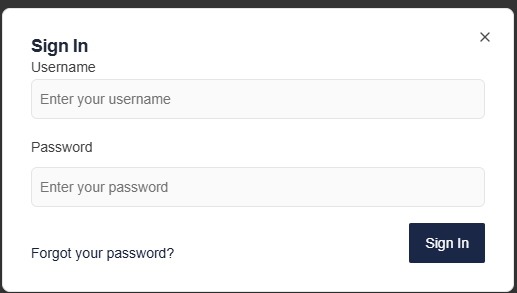
In your web browser, go to customer.wrmco.com. The Sign In window will appear.
2. Start the password reset
On the Sign In window, select Forgot your password? (you don't have a password yet — this is how you create one).
3. Enter your email address
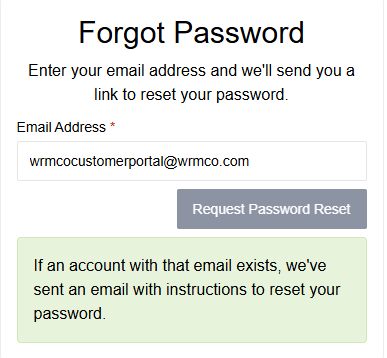
Type the primary email address on your account, then select Request Password Reset. You'll see a confirmation that an email is on its way.
4. Reset your password
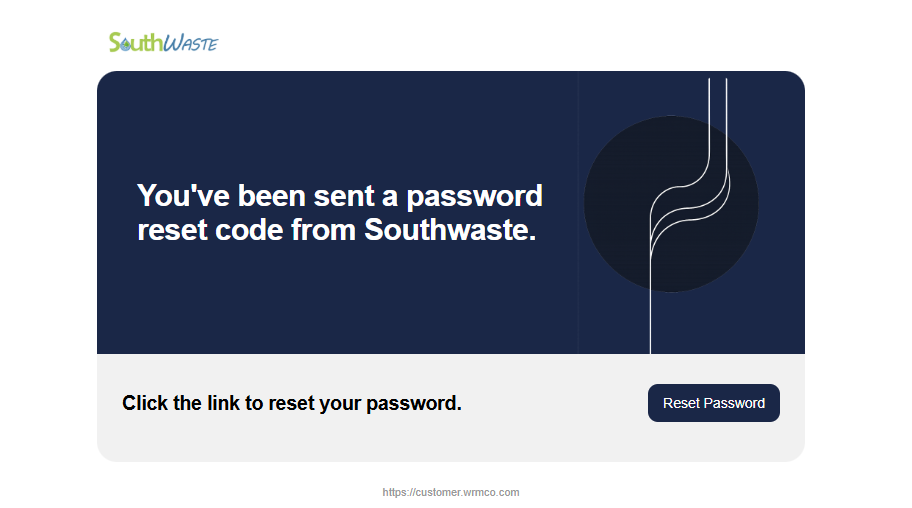
Check your inbox for an email from noreply@wrmco.com. Open it and select Reset Password, then choose a password you'll remember. If you don't see the email within a few minutes, check your spam or junk folder.
5. Select the account to manage
Sign in with your new password. In the upper-right corner, open the Select Customer menu, choose your account, and select Manage. If you have more than one location, each will appear here.
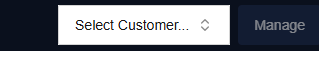
Open the Select Customer menu

Choose your account, then Manage
You're in
Once you've selected your account, you'll land on your dashboard. The next sections show you how to review invoices, add a payment method, and pay.
Part 2 of 3
Review your invoices
Your dashboard summarizes open credits, open invoices, past-due balance, and account balance, with your most recent activity below.
6. Find and open an invoice
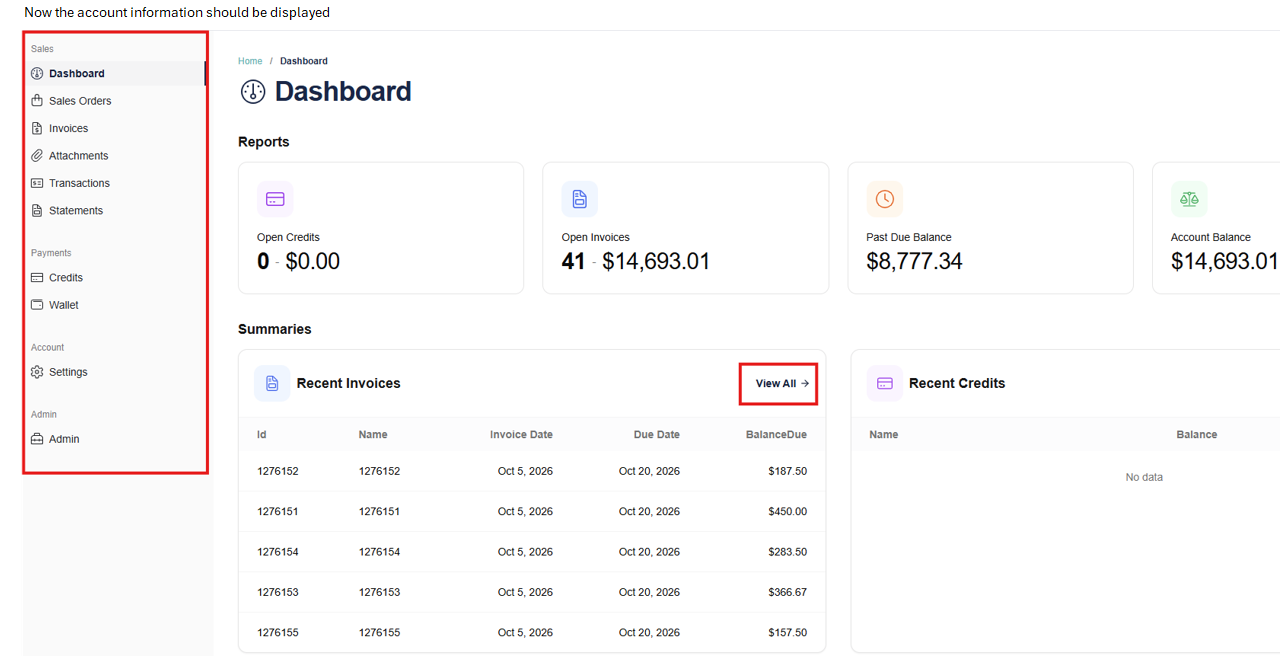
Your dashboard. Use the left navigation to move between Invoices, Wallet, and other sections.
- Open Invoices. Select Invoices from the left navigation menu.
- Find an invoice. Use the filters, including due date and status, to narrow the list.
- Open the invoice. Select View Details next to the invoice you want to review.
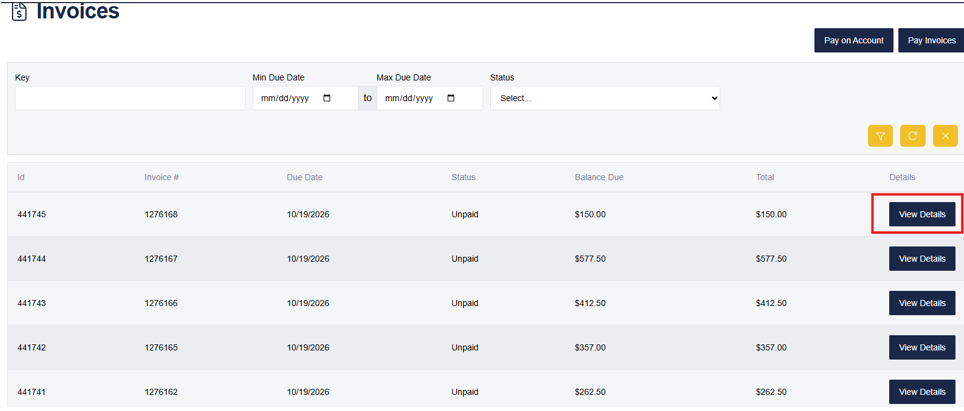
The invoice list with the View Details button
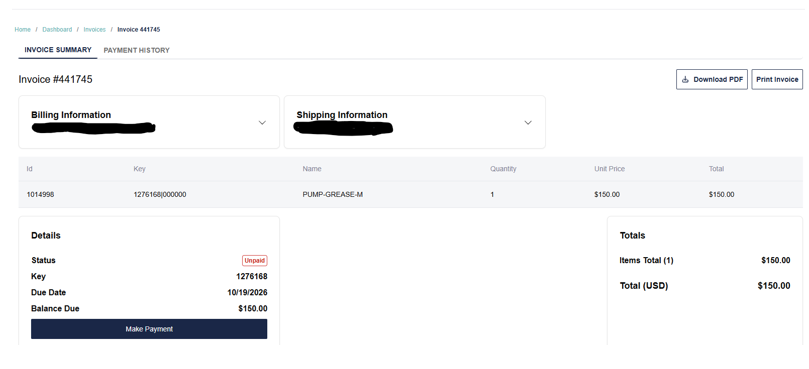
- Review the information. Confirm billing and shipping information, line items, status, due date, balance due, and invoice total.
- Download, print, or pay. Use Download PDF or Print Invoice for a copy. Select Make Payment when you're ready to pay this invoice.
7. Set up your wallet
Add the cards or bank accounts you'd like to pay with. You only need to do this once; saved methods are available at checkout.
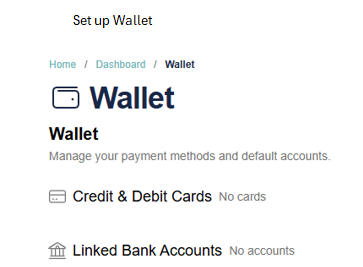
- Open Wallet. Select Wallet from the left navigation menu.
- Choose a payment-method type. Pick Credit & Debit Cards or Linked Bank Accounts.
- Follow the prompts. Enter the requested details and save them for checkout. Double-check what you've entered before saving.
Part 3 of 3
Pay your invoices
Pay one invoice, several, or everything that's open, using any payment method saved in your wallet.
8. Select, review, and confirm
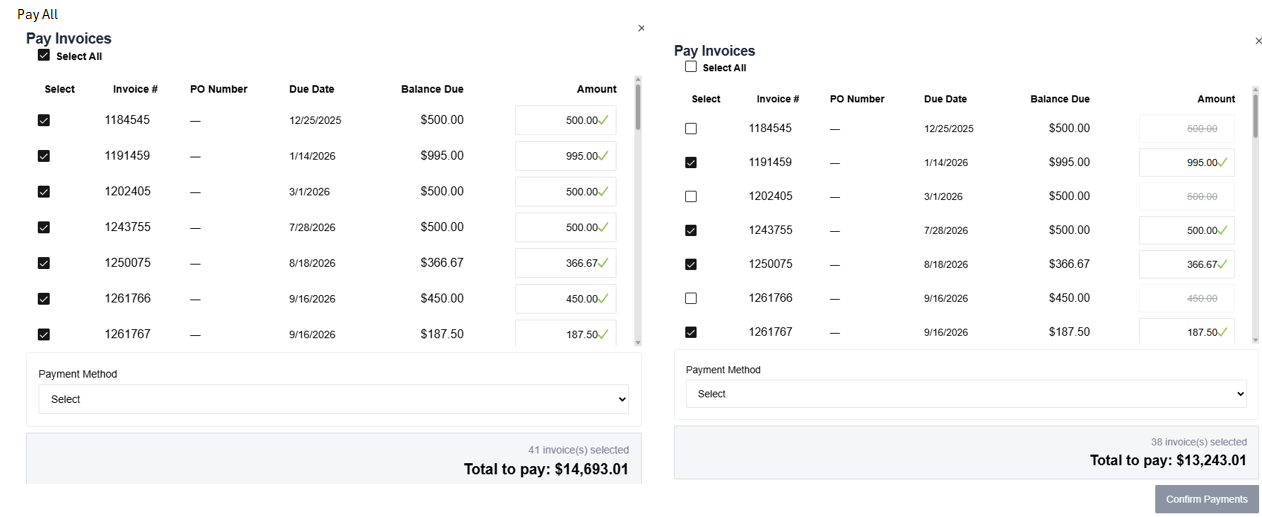
Left: Pay All. Right: paying selected invoices only.
- Choose the invoices. From the payment screen, select individual invoices or use Select All. Review the amount entered for each one.
- Select the payment method. Choose from the Payment Method list. If nothing appears, add a method under Wallet first (step 7).
- Review the total. Confirm the Total to pay shown at the bottom of the screen.
- Submit the payment. Select Confirm Payment only after verifying the selected invoices, amounts, and payment method.
Important
Never submit a payment until you have confirmed the active customer account, the selected invoices, the payment amounts, the payment method, and the total.
Quick review
Customer checklist
Run through this list before selecting Confirm Payment.
- You are managing the correct customer account (check the Select Customer menu).
- The selected invoice numbers and balances are correct.
- The payment amount for each invoice is correct.
- The intended card or linked bank account is selected.
- The total payment amount is correct before selecting Confirm Payment.
- You have saved the confirmation or receipt displayed by the portal.
You're all set
You're now ready to view invoices and manage payment preferences in the Customer Payment Hub. Bookmark customer.wrmco.com for next time.
The Payment Hub button takes you to a third-party website. We do not control or endorse the content of external websites and are not responsible for their availability, security, privacy practices, or content.
Need a hand? Call (866) 695-0170, Monday – Friday, 8am – 5pm, or email info@southwaste.com.